Export reports and download images
Export a report
In Inspect, select a network, then click Export report in the Inspector panel. Choose one of:
| Report | What you get |
|---|---|
| Executive report (PDF) | The client-facing summary Detect published for this network. The newest is marked Latest. |
| Defect data (CSV) | One row per defect, for your own analysis or asset systems. |
| Structure status (CSV) | One row per structure: location (latitude and longitude), status, image uploads, image count and last update. |
For Defect data, you can choose:
- the inspection (by default, Today · current status);
- which structures to include;
- All defects, Active only or Repaired only;
- extra columns such as repair details, photo type, network, the structure's latitude and longitude, and a link to each image.
Then click Download CSV.
Download images
You can download images from two places:
- One structure: open the structure and click Download image. Choose this image, all images on the structure, or all images in the inspection.
- A whole network: in the Inspector panel, click Download › Images. Choose the inspection, and whether you want images matching your current filters, all images on the matching structures, or the whole inspection.
Then pick a format:
- Raw: your original images, as processed.
- Annotated: with defect boxes, severity colors and labels drawn on.
- Both: every image twice, in
raw/andannotated/folders.
How large downloads are handled
| Size | What happens |
|---|---|
| A single image | Downloads straight away. |
| Up to 2 GB | DetectOS packages a zip for you, usually within a few minutes. |
| 2 GB to 100 GB | DetectOS packages a zip and emails you a link when it's ready. |
| Over 100 GB | Click Request assisted download, and Detect support will contact you within one business day. |
The Downloads page
Open Downloads from the account menu to see every export you have requested, filter them by Preparing, Ready or Needs attention, and click Get zip to download a ready one.
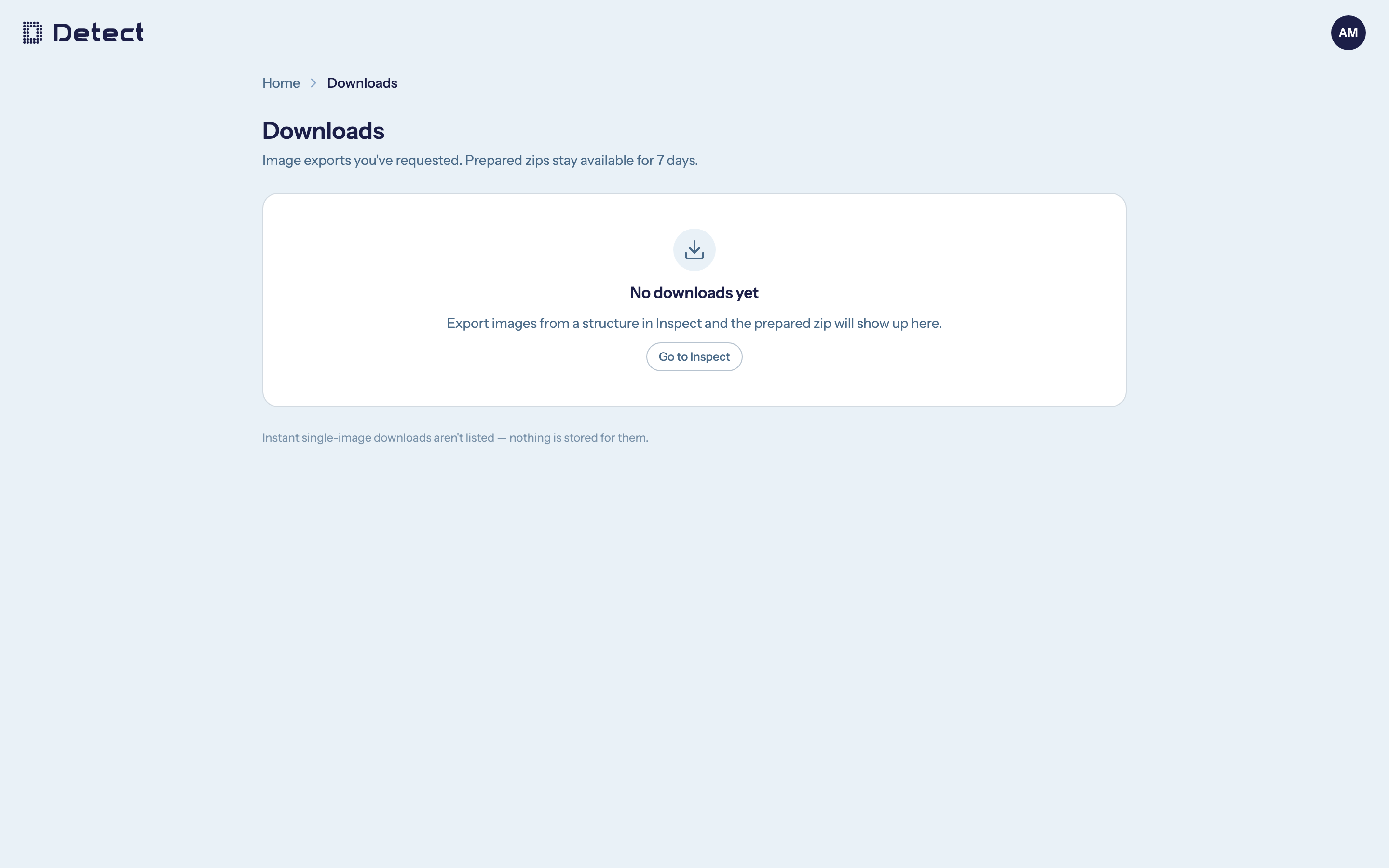
Prepared zips are kept for 7 days, then deleted. Single-image downloads aren't listed, because nothing is stored for them.
Flight plans
If your organization uses Flight Planning, Download › Flight plans gives you KML files with take-off spots, flight segments and access routes.