Review a structure
Click any structure in Inspect, whether on the map or in the table, to open its detail panel. Photos are on the left; defects and other details are on the right.
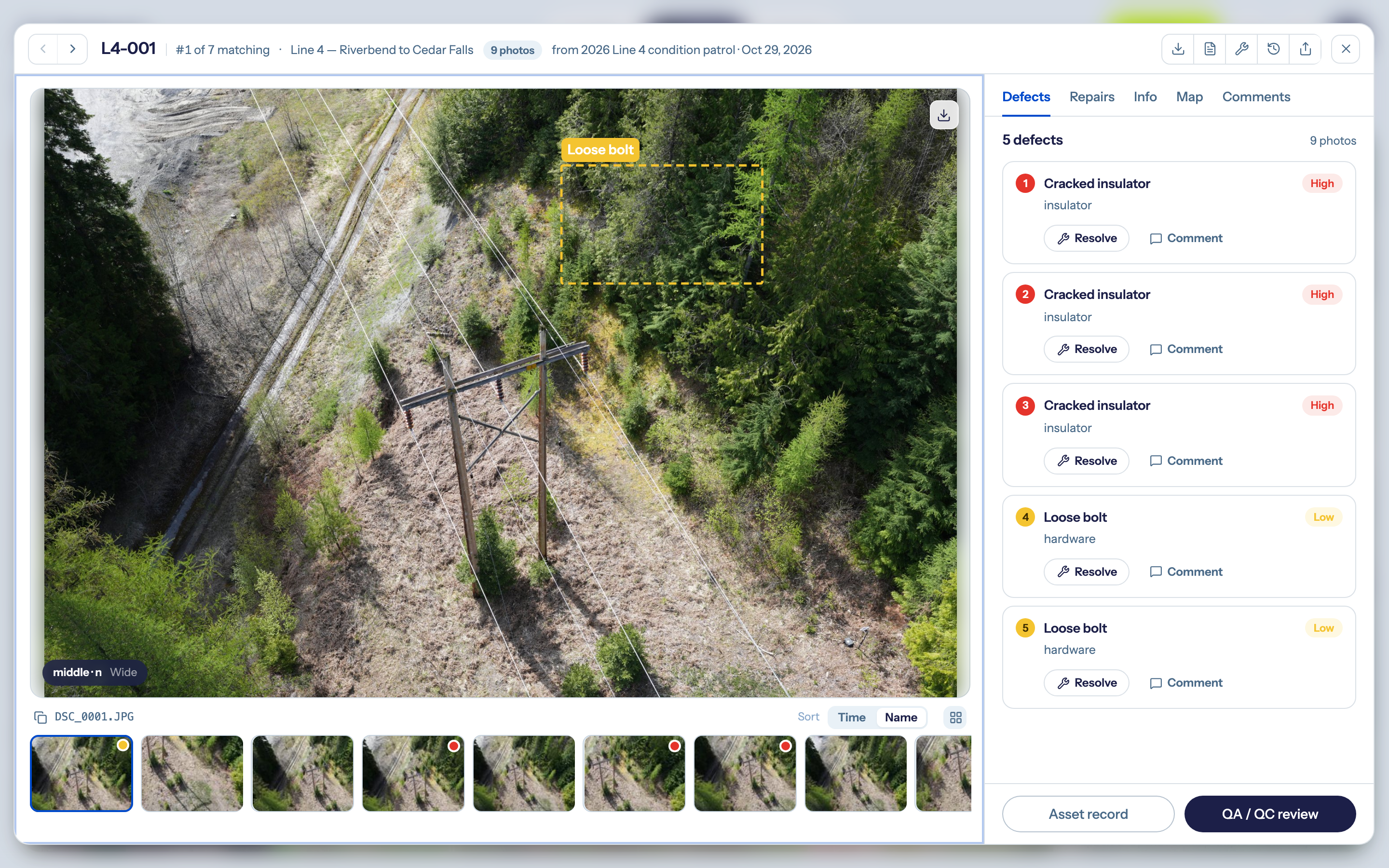
Use Previous structure and Next structure at the top to move along the network without closing the panel.
Browse photos
- Click a thumbnail to view it, or press ← and → to step through the photos. The arrows work as soon as the panel opens. If you click elsewhere in the panel, click the photo or a thumbnail to use them again.
- Image type switches between regular (RGB) and thermal photos, if both were captured.
- Photos open sorted by Name (file name, so
DJI_0002comes beforeDJI_0010). Click Time to see them in flight order; the panel opens sorted by name again next time. - Expand to grid shows all photos at once.
- Zoom with your mouse wheel or trackpad pinch, up to 8×, and drag to move around a zoomed photo.
- Click the file name to copy it.
Defects
The Defects tab lists every defect found on the structure, with its severity. If the structure hasn't been analyzed yet, the tab says so.
On thermal photos, hover over the image to read a temperature. DetectOS doesn't flag hot spots automatically; use the Thermal tab to adjust how the image is read.
Log a repair
When a defect has been fixed in the field, record the repair. You need to be a Pilot or Admin, with a specific inspection selected (not Today).
- On the defect, click Resolve.
- Enter the Fix date and Notes about what was done. You can add photos.
- Click Log repair.
The defect then counts as repaired. Click View repair on it to see the details later, or open the Repairs tab.
Other tabs
| Tab | What it shows |
|---|---|
| Info | Health score, remaining life, type, network, last inspection, data confidence, year installed, and any custom fields. |
| Map | Where the camera was and which way it pointed for the current photo. |
| Comments | A discussion about this structure. Type @ to mention someone, Enter to send, and Shift+Enter for a new line. You can link a comment to a specific defect. |
History
Click History to see what has happened to the structure: images added, analyses completed, repairs recorded and status changes. Switch between This inspection and All time.
Flag a problem with the results
If you think a defect was missed or graded wrongly, click QA / QC review at the bottom of the panel. Choose Missed defect, Incorrect defect, Incorrect severity or Other, describe the issue, and send it to Detect for review.
Share or open the full record
- Click Share to copy a link or give someone access. See Share an asset.
- Click Asset record to open the structure on the Asset page.
- Use Download image and Download report to save this structure's photos or report.