Upload images
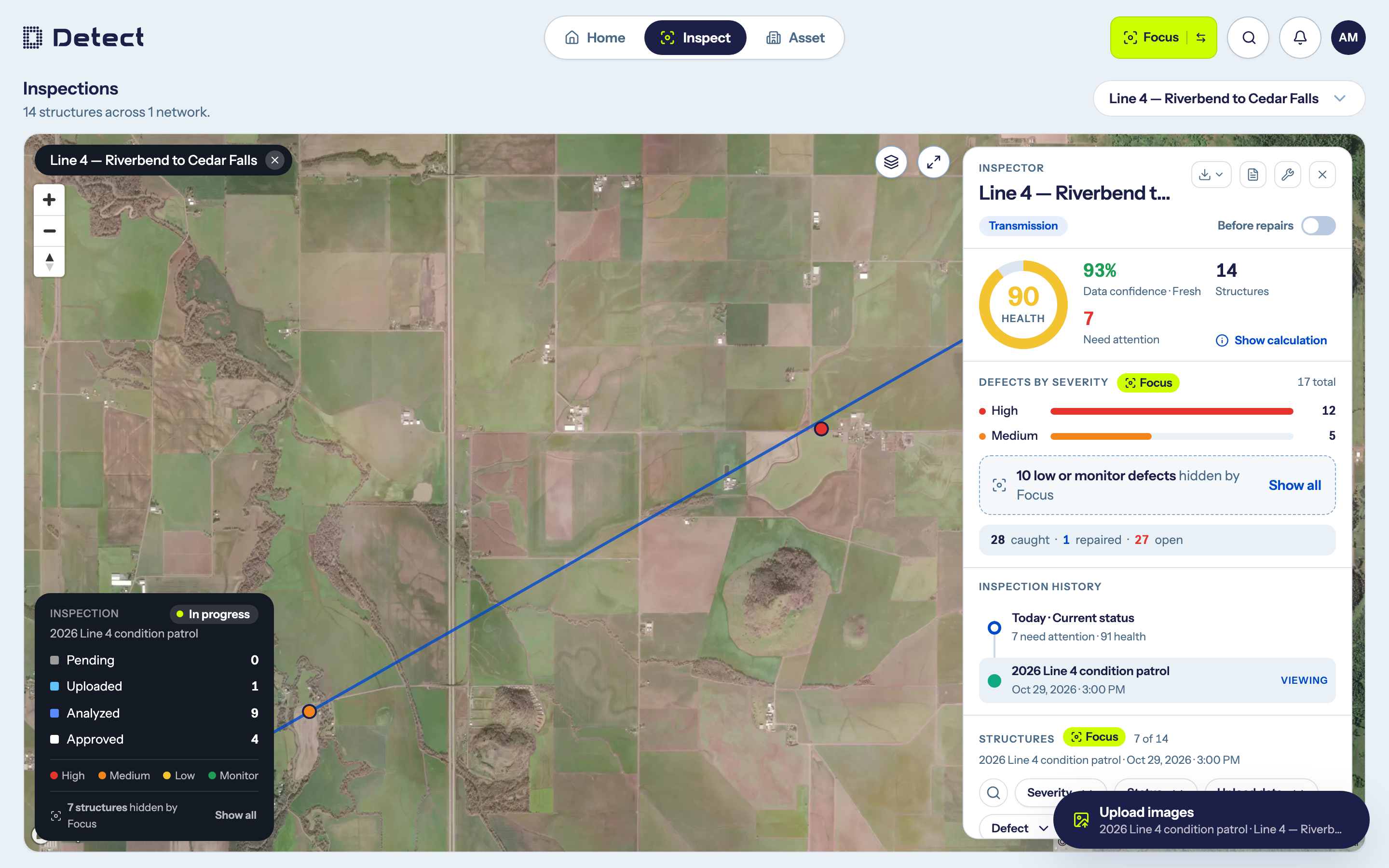
Pilots and Admins upload drone imagery straight to an inspection in Inspect.
Before you start
The Upload images button appears at the bottom right of Inspect when:
- you are a Pilot or Admin;
- you have selected a specific inspection in the inspection history (not Today);
- that inspection is not completed;
- no structure panel is open.
If you are a Pilot, your To do card on Home lists inspections waiting for images, with an Upload images button for each.
Upload a flight
- In Inspect, choose the network and then the inspection.
- Click Upload images.
- Drag your flight folder onto Drop your flight folder here, or click Browse for a folder. Subfolders are included, and duplicate files are skipped.
- Check the summary. If some photos are already on the inspection, DetectOS tells you and skips them.
- Click Start upload.
While it uploads
- Keep the browser tab open. You can keep working elsewhere in DetectOS while the upload runs, and you can minimize the upload panel.
- If you lose your connection, the upload pauses and resumes automatically when you're back online.
- When it finishes you'll see Upload complete, or Upload finished with errors with the files that need to be sent again.
Once images are uploaded, Detect analyses them, and the structures move from Uploaded to Analyzed. You'll get a notification when analysis is done.